
- Docs
- Apps
- Canvas
Canvas
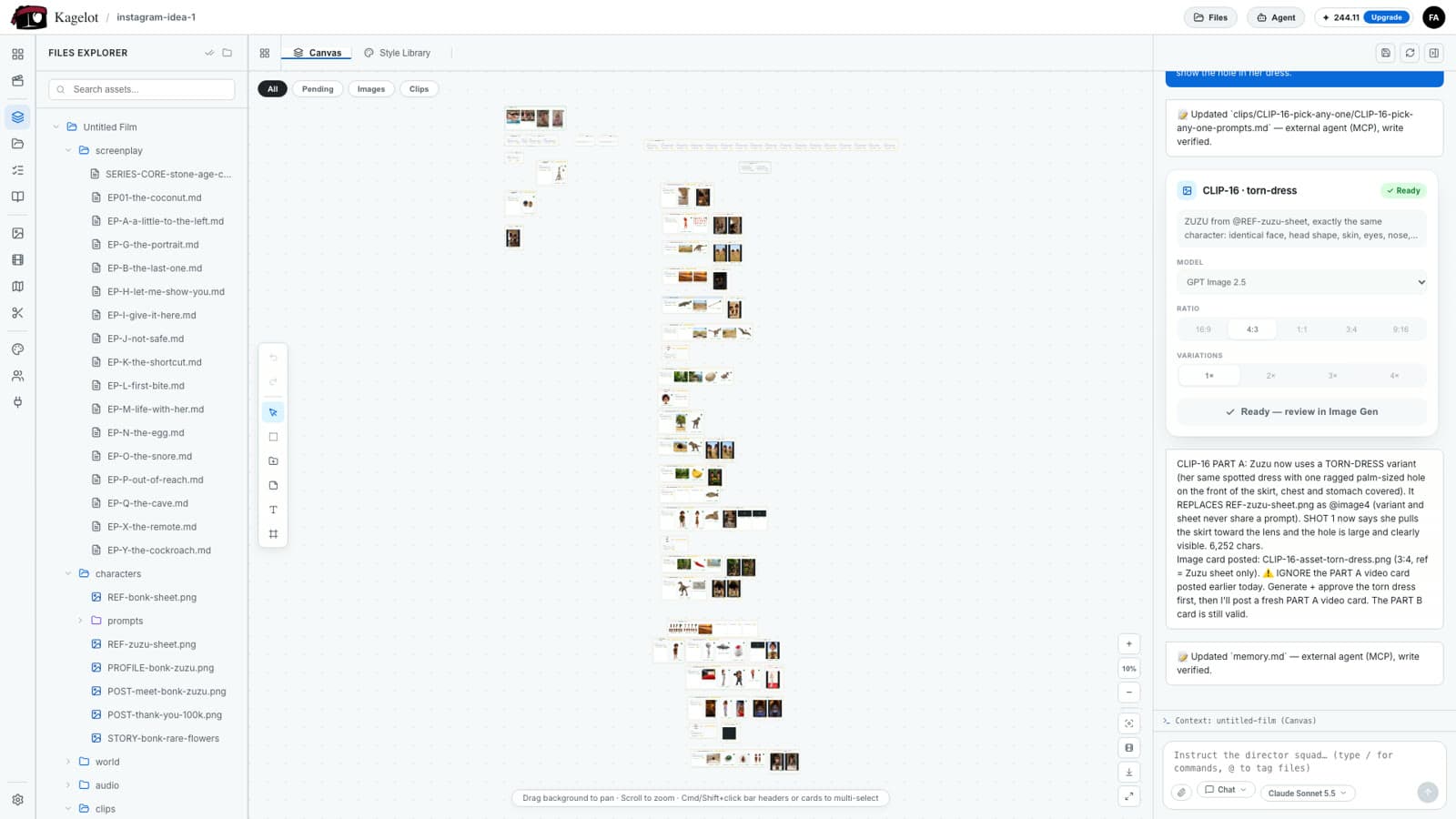
The canvas is where your whole film lives. Every folder in your project is a bar on an infinite board, and every file is a card inside it, so you can see what is done, what is still pending and what to make next. You also start image and video generations from here, without writing a prompt.
How it works
The canvas and Files Explorer are two views of the same project. Each folder is a bar on the canvas and each file is a card in that bar. When you or the AI adds a file, it shows up in both places at once.
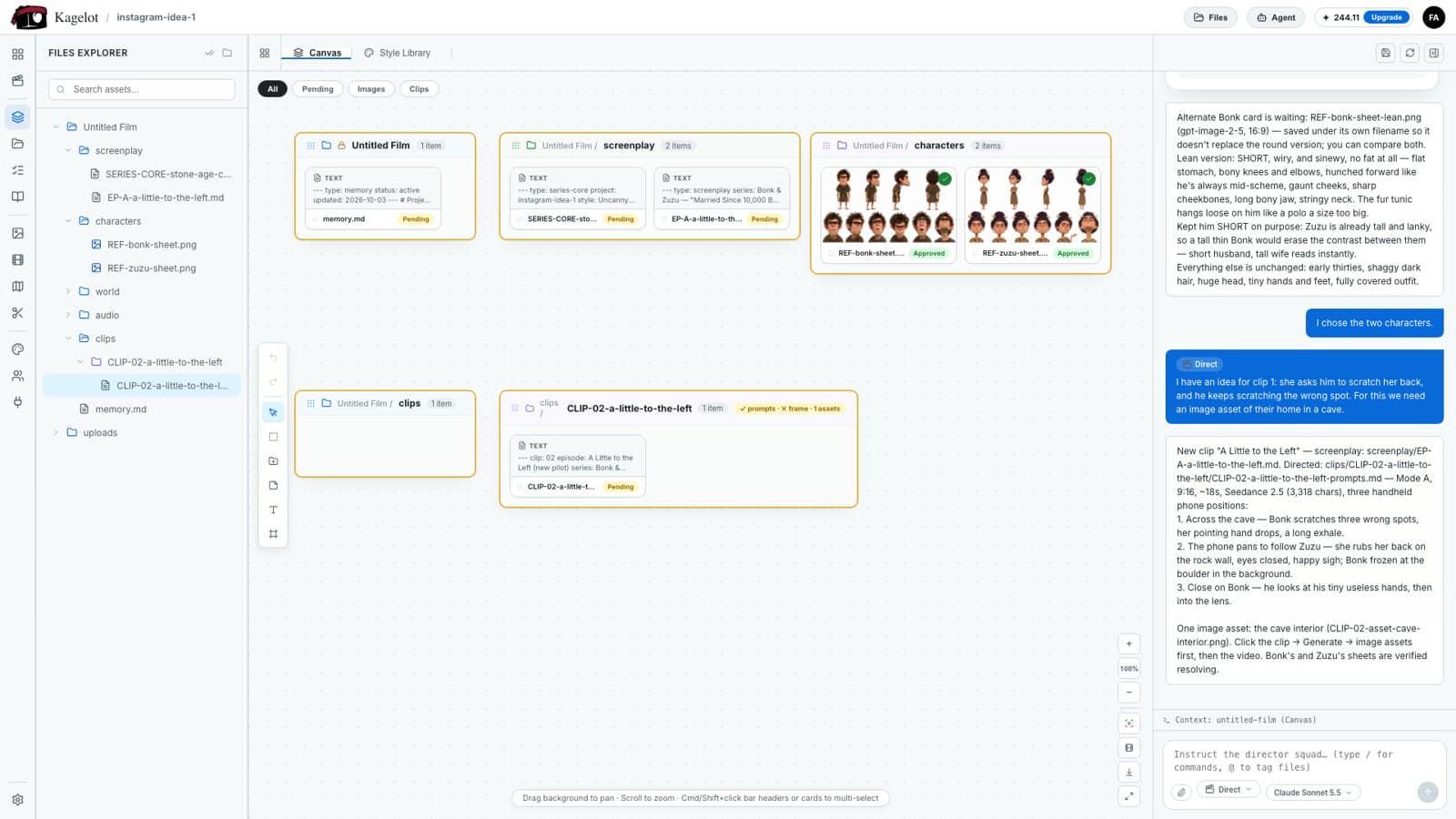
- A new project starts with the same folders, such as screenplay, characters, world, audio and clips, plus the project memory file.
- Every clip gets its own bar inside clips. It holds the clip’s prompt file, its image assets and its renders.
- Each card shows its status: Approved, Pending, Generating or Rejected. A clip bar also shows whether it is ready for video.
Move around the canvas
- Pan: drag the background. Zoom: scroll, or use +, − and the zoom level in the bottom-right corner.
- Zoomed far out, bars switch to a simple overview, so a film with hundreds of clips stays fast and readable.
- Filter with the buttons at the top: All, Pending, Images or Clips.
- Select several: Cmd- or Shift-click bar headers or cards. From the selection toolbar you can lock folders so they can’t be moved or deleted.
- The tool rail on the left has undo and redo, select, box select, new folder, new file, text notes and artboards (coloured zones that group bars).
The bar toolbar
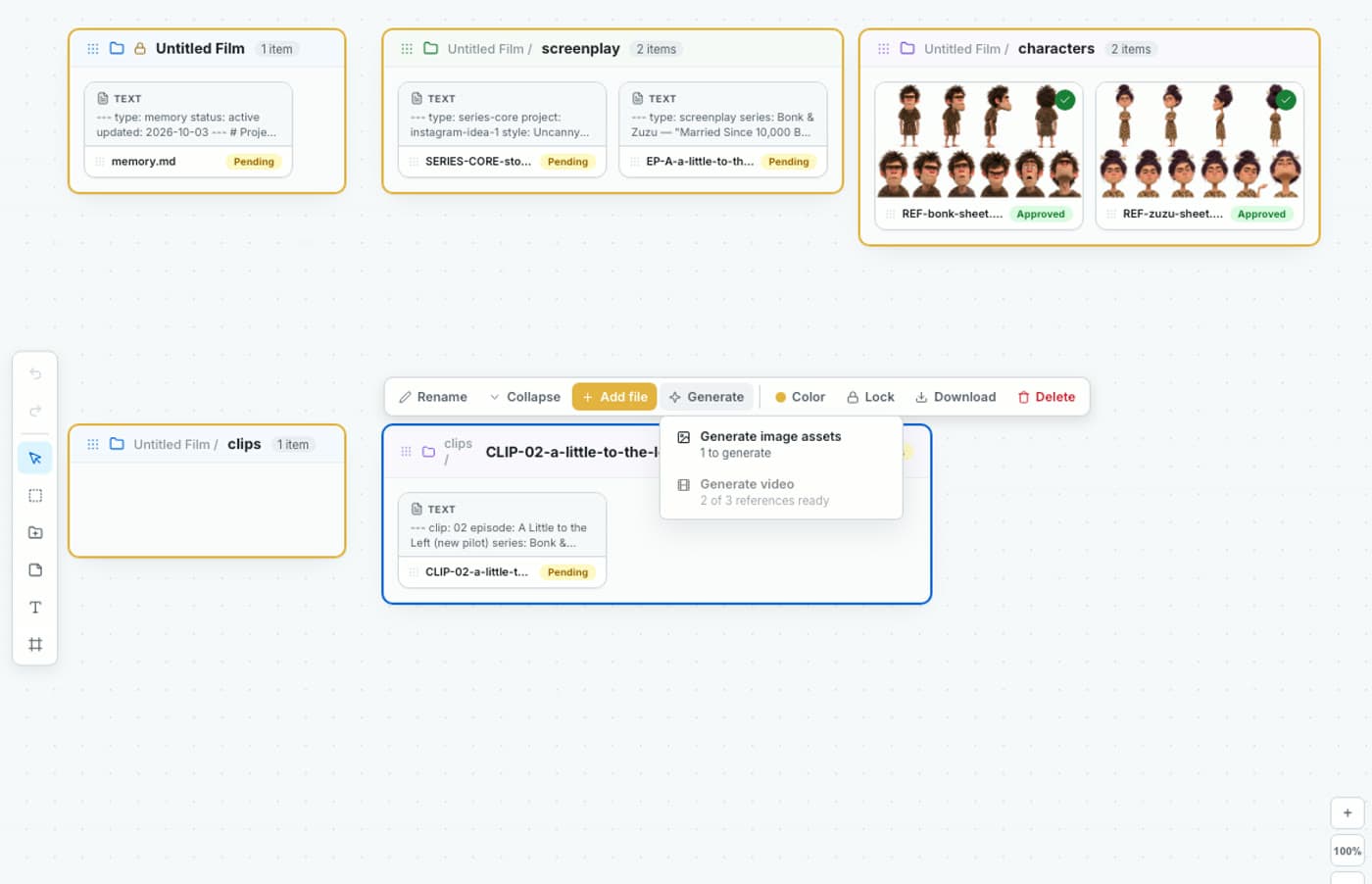
Click a bar to open its toolbar: Rename, Collapse, Add file (a prompt, an image reference, a diagram or a video), Generate, Color, Lock, Download and Delete.
Generate images and video from a clip
The AI writes each clip’s prompt file when it writes the clip. From the canvas you only launch it.
Click the clip’s bar, then Generate
The menu shows Generate image assets with how many images still need to be made, and Generate video with how many references are ready.
Generate the image assets
Choose Generate image assets. An image card opens in the chat with the prompt already written. Pick the model, the ratio and the number of variations, then click Generate.
Assign the image to the clip
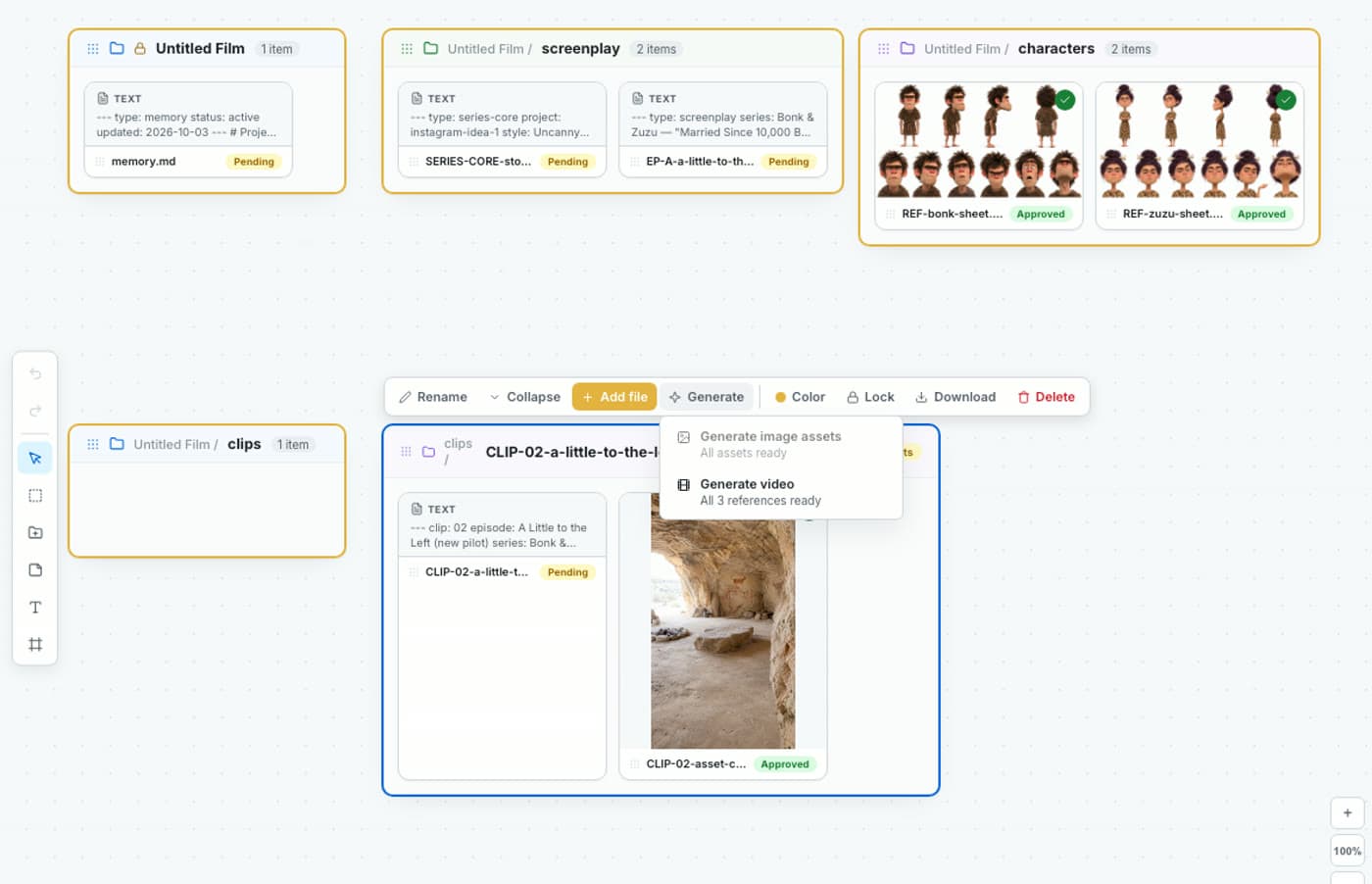
Review the result in Image Gen and assign it to the clip. It appears in the clip’s bar as Approved.
Generate the video
Click the bar and Generate again. Generate video now says that all references are ready. A video card opens in the chat with every reference image attached; choose the model and click Render.
No image tagging
The clip’s prompt file already lists which image is @image1, @image2 and so on. Kagelot attaches the right images to the video card for you.
The characters bar has its own Generate menu: it launches image cards for characters that don’t have an image yet, or regenerates one character from its saved prompt.
Work with cards
- Image cards: review full size, approve, rename, move to another folder, download or delete.
- Pin to chat context keeps a file in the AI’s view while you chat about it.
- Video cards: play the render, save the current frame as a PNG in the clip’s folder, or capture the last frame to use as the first frame of the next clip.
- Text cards (prompts, screenplays, memory) open in the File Viewer to read or edit.
FAQ
Is the canvas the same as Files Explorer?
Yes. They show the same folders and files. A folder is a bar on the canvas and a file is a card, so a change in one shows in the other.
Do I need to write prompts to generate from the canvas?
No. The AI writes each clip’s prompt file. You click the clip, then Generate, and the card opens in the chat with the prompt filled in. You can still open the prompt file and edit it.
Do I have to tag reference images?
No. The prompt file says which image is @image1, @image2 and so on, and Kagelot attaches them to the video card automatically.
What if my project has hundreds of clips?
Zoom out and the bars switch to a light overview. Use the Pending, Images and Clips filters to find what still needs work.
Can I organise the board?
Yes. Drag bars anywhere, give them colours, collapse them, lock them so they can’t be moved, and group them on artboards.
See it in a real project
- Bonk & Zuzu tutorial — the full series made on this canvas
- Watch the canvas part on YouTube (3:10) ↗ — Files Explorer = canvas, then generating a clip
Last updated November 4, 2026