- Docs
- Apps
- Image Gen
Image Gen
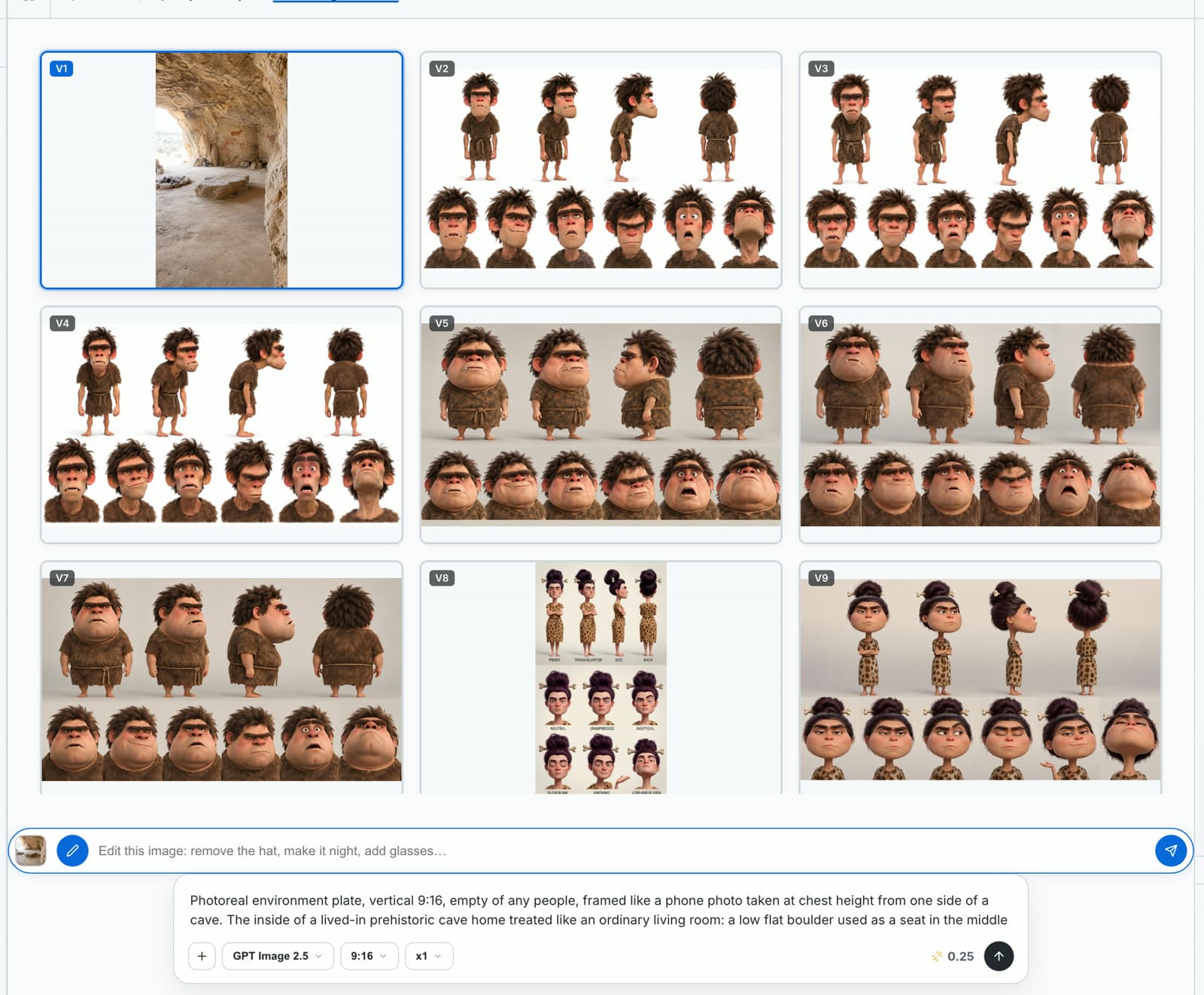
Image Gen makes the still images your film is built from: character sheets, locations and props. The AI writes each prompt from your story, you choose the model and how many variations you want, and you assign the best result to a clip or a character, where every video can reuse it.
How it works
You rarely start in Image Gen itself. When the AI writes a clip that needs an image, such as a location, it adds an image card to the chat with the prompt already written. You generate from that card, and every result lands in the Image Gen gallery.
- From a clip: click the clip on the canvas, then Generate › Generate image assets.
- From the chat: ask for an image (“we need an image of their home, a cave”) and the AI adds the card.
- By hand: write your own prompt in the prompt bar at the bottom of Image Gen, or click Upload Image to bring in an image you made elsewhere.
Generate an image
Open the image card
The card names what it is for (here
CLIP-02 · cave-interior) and shows the start of the prompt the AI wrote. Before you generate, it shows the credit cost.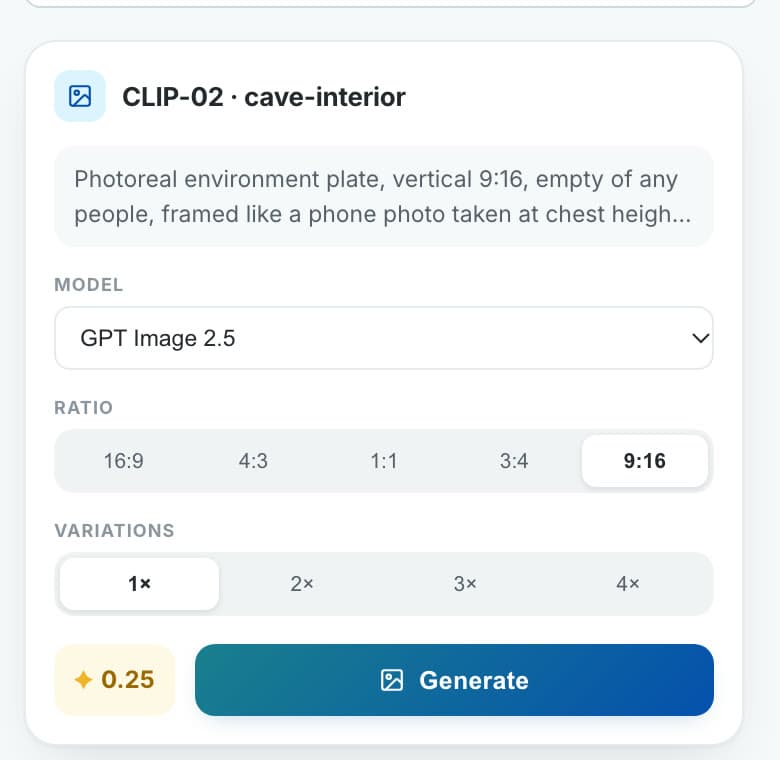
Pick the model, ratio and variations
Ratio: 16:9, 4:3, 1:1, 3:4 or 9:16. Variations: 1× to 4×, so you can compare several takes of the same prompt.
Click Generate
The card shows the progress, then Ready — review in Image Gen. The results appear at the top of the gallery.
Models
- Nano Banana 2: cheap and fast, the default for quick tests.
- Nano Banana Pro: higher quality, costs more.
- Gemini 3 Pro Image: the highest quality of the Gemini models.
- GPT Image 2: precise labels and dense detail.
- GPT Image 2.5: the newest, sharper quality and precise repeated edits.
Review and assign
Click a result to open it full size and check the details: the clothes, the materials, the light. You didn’t have to describe them; the AI took them from the story and the character sheets.
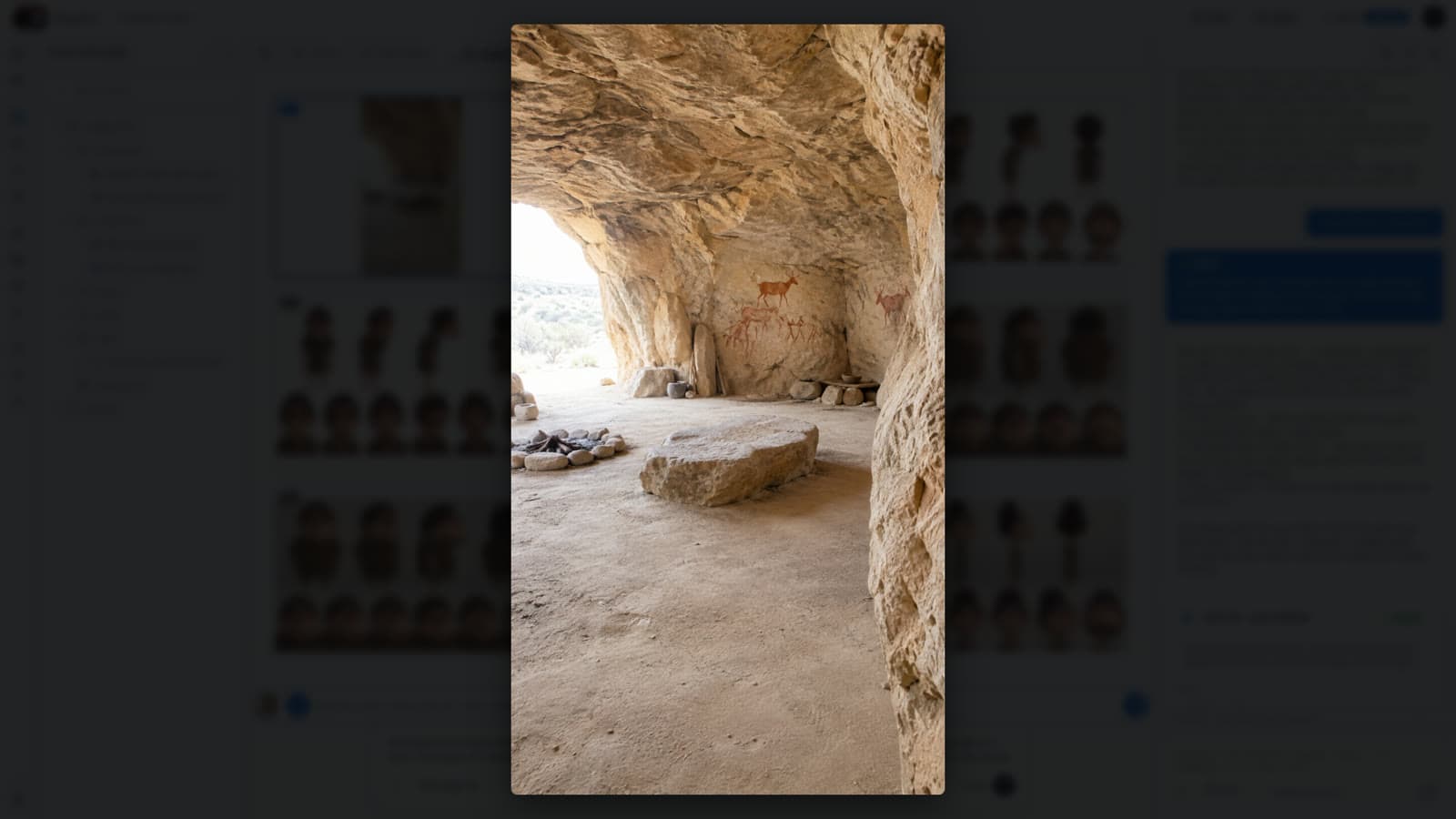
Open the ⋮ menu on a result to use it:
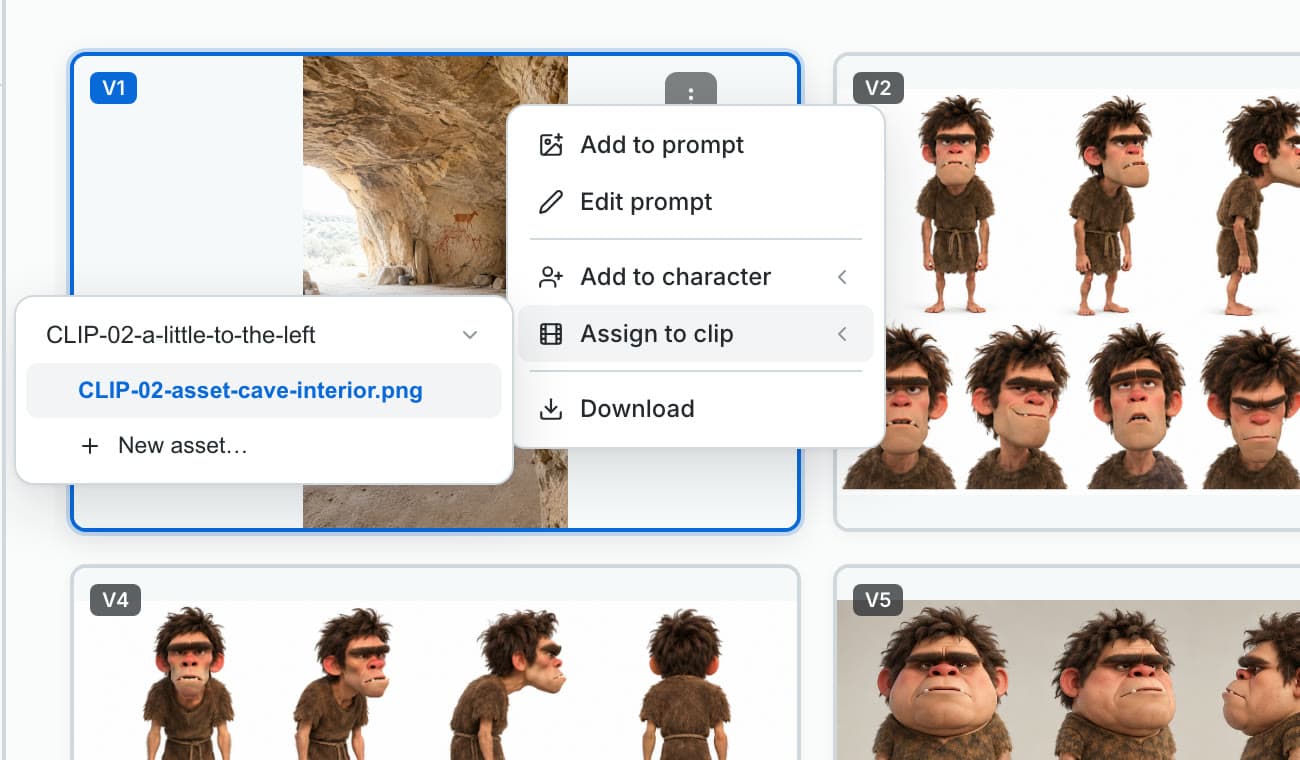
- Assign to clip: choose the clip, then the image asset it fills (or New asset…). The image appears in that clip on the canvas as Approved, and the clip’s video uses it.
- Add to character: make the image a character’s sheet, for an existing character or a New character….
- Add to prompt: attach the image as a reference for your next generation.
- Edit prompt: load the prompt and settings that made this image back into the prompt bar, change them and generate again.
- Download: save the file.
One image per location or prop
Make a location or an object that has to look the same in every shot (a room, a painting, a prop) its own image asset. Each clip that uses it then gets the exact same picture as a reference.
Edit an image
Select a result and type the change in the edit bar above the prompt bar: “remove the hat”, “make it night”, “add glasses”. Kagelot makes a new version of that image with the change, using the model you picked; the original stays in the gallery, so you can compare both.
Write your own prompt
The prompt bar at the bottom works on its own too. Write a prompt or @ mention images from the project as references, add more references with +, pick the model, ratio and number of images, and send.
FAQ
Do I have to write image prompts?
No. The AI writes the prompt when it writes the clip or the character, from your story and the character sheets. You can still edit it, or write your own in the prompt bar.
Which image models does Kagelot have?
Nano Banana 2, Nano Banana Pro, Gemini 3 Pro Image, GPT Image 2 and GPT Image 2.5. You choose the model on each image card.
How do I keep a character looking the same?
Generate a character sheet, pick the best variation and use Add to character. Every later image and video of that character uses the sheet as its reference.
How do I use an image in a video?
Use Assign to clip. The image becomes one of the clip’s image assets, and the clip’s video card attaches it automatically, with no tagging.
Can I change one detail of an image?
Yes. Select it and type the change in the edit bar, for example “make it night”. You get a new version with the change; the original stays in the gallery.
Can I use images I made elsewhere?
Yes. Click Upload Image in Image Gen, then assign it like any other result.
See it in a real project
- Bonk & Zuzu tutorial — the cave and both character sheets were made this way
- Watch the image asset part on YouTube (3:43) ↗ — image card, full-size view, Assign to clip
Last updated November 4, 2026