
- Docs
- Apps
- Style Library
Style Library
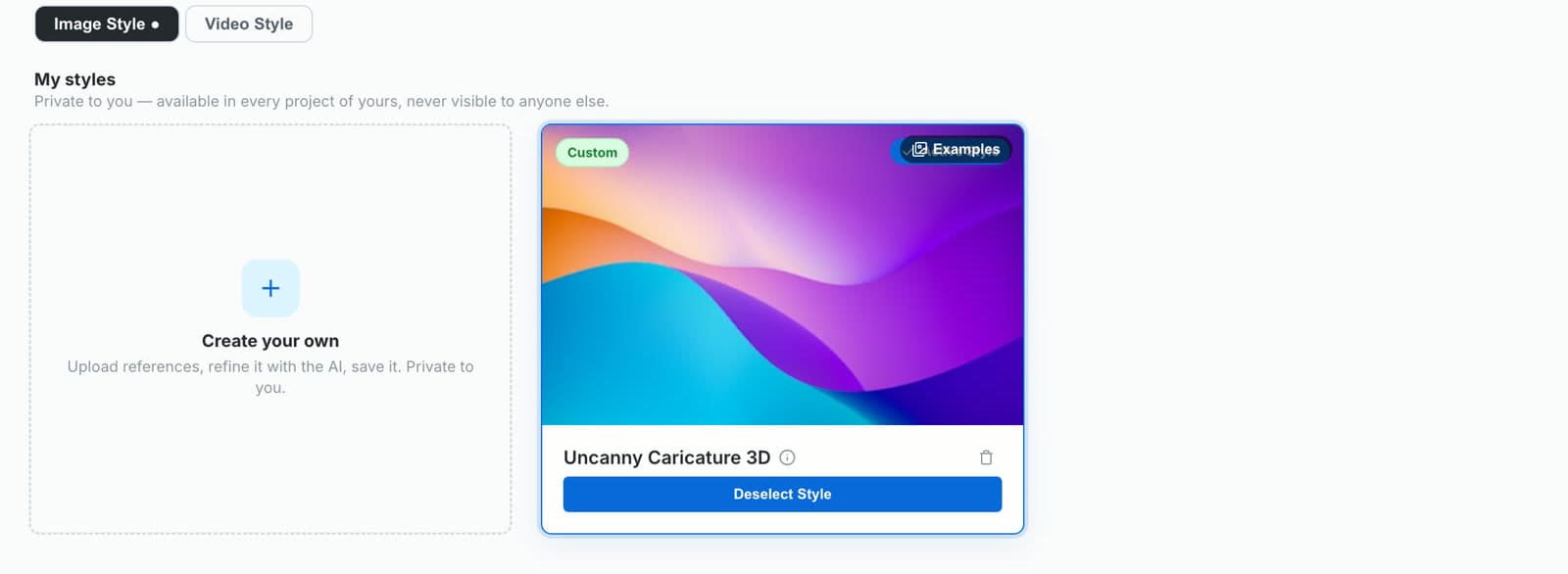
The Style Library locks one look for your whole project. Once a style is selected, every image and video prompt the AI writes follows it, so your characters, locations and clips all look like the same film. Pick a ready-made style, or copy your own from a few reference images.
How it works
- Image Style and Video Style are two tabs. A project can lock one of each.
- The image style tells the AI how every still should look: the rendering, the faces, the materials, the light.
- The video style tells the AI which Seedance prompt grammar and directing approach to use for the project’s clips.
- Select a style with Select Blueprint. The selected style shows Deselect Style, and the AI uses it from the next message on.
Option 1: pick a ready-made style
You don’t have to create a style. The Kagelot library already has ready-made styles that work in every project, from painterly and anime looks to photoreal cinema and clay.
Open the Style Library
Open Style Library from the app menu or the tab bar, and stay on the Image Style tab.
Look through the Kagelot library
Scroll below My styles to the Kagelot library. Hover over a card to see its sample images, or click Examples to open them full size.
Click Select Blueprint
The style is now locked for this project and its button changes to Deselect Style. Every image and video prompt the AI writes from now on follows it.
Optional: pick a video style too
Switch to the Video Style tab and select one the same way. It sets how the AI writes and directs the Seedance shots.
Option 2: copy your own style from reference images
Upload a few reference images in the chat
Attach three or four images that have the look you want and write “Copy this style.” You can also start from Create your own in the Style Library.
Let the AI draft the style
The AI studies the references and writes the style: how faces, bodies, materials, colour and light should look, so new characters and places come out in that look.
Refine it, then save
Generate a test character, tell the AI what to change (“less realistic”, “warmer light”) and say save it when it looks right. The style appears under My styles.
Select it for the project
Click Select Blueprint on the style. Every image and video the AI writes for this project now follows it.
My styles are private
Styles you create are private to you. Nobody else can see or use them.
If you already have your own prompt rules for a look, Add Custom Prompt Preset saves them as a style with a name and a short description.
Change the style later
You can deselect a style or switch to another one at any time. Images and videos you already made keep their look; new prompts follow the new style. If a character came out wrong because of the style, fix the style first, then regenerate the character, so every later image starts from the right look.
FAQ
Do I have to create my own style?
No. The Kagelot library has ready-made styles. Open the Style Library, pick one and click Select Blueprint. Creating your own from reference images is optional.
How do I keep the same visual style across a whole series?
Select one style in the Style Library. Every image and video prompt the AI writes for the project follows it, and the approved character sheets keep the characters themselves consistent.
Can I copy the style of images I like?
Yes. Upload a few reference images in the chat and ask the AI to copy the style. It writes a style from the look of the images and saves it to My styles.
Can other people see my custom styles?
No. Styles you create are private to you.
What is the difference between the image style and the video style?
The image style sets how stills look. The video style sets how the AI writes the Seedance prompts and directs the shots. A project can lock one of each.
What happens if I change the style in the middle of a project?
New prompts follow the new style. Images and videos you already made stay as they are, so regenerate the character sheets first if you want everything to match.
See it in a real project
- Bonk & Zuzu tutorial — the series style was copied from four reference images
- Watch the style part on YouTube (0:26) ↗ — reference images → style → first character
Last updated November 4, 2026