
- Docs
- Apps
- Video Gen
Video Gen
Video Gen turns each clip of your film into video with Seedance. The AI writes the shots, the camera and the prompt; every reference image the clip needs, from character sheets to locations, is attached for you, so the same faces, clothes and places come back in every clip.
How it works
Each clip on the canvas has a prompt file that the AI writes: the shots, the camera, the action and the sound. The prompt file also says which image is @image1, @image2 and so on, for example the location, then each character. When you start a render, Kagelot reads that mapping and attaches the right images.
No image tagging
You never upload or tag reference images for a clip. Make the images in Image Gen, assign them to the clip, and the video card already has them.
Render a clip
Click the clip, then Generate › Generate video
The menu tells you how many references are ready, for example All 3 references ready: the location and both characters. If one is missing, generate it first with Generate image assets.
Check the video card in the chat
The card is named after the clip (Render CLIP-02) and starts with the prompt the AI wrote. The settings are filled in from the clip; change any of them before you render. The card shows the credit cost.
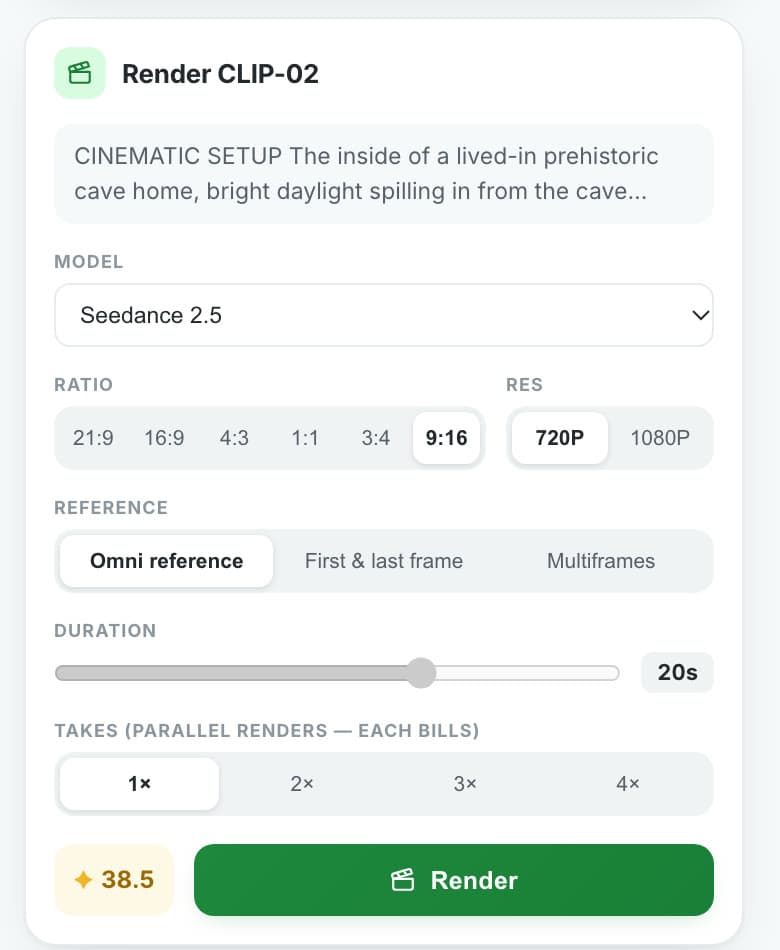
Click Render
The card shows Rendering…, then Rendered — review in Video Gen. The video appears in a videos folder inside the clip on the canvas.
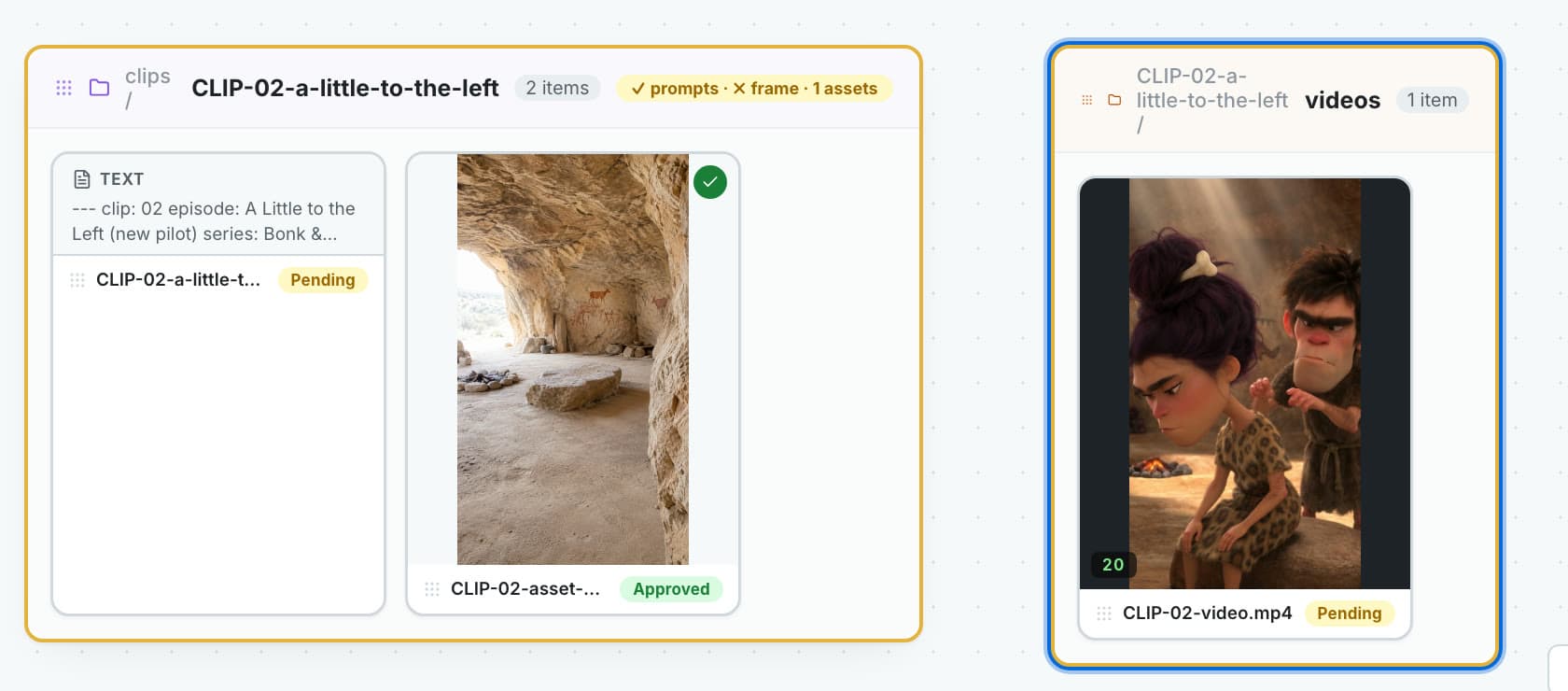
Video settings
- Model: Seedance 2.5 (the newest: clips up to 30 seconds and up to 30 reference images), Seedance 2.0, Seedance 2.0 Fast, Seedance 2.0 Mini (the cheapest and quickest), Seedance 1.5 Pro (synced natural sound) and Seedance 1.0.
- Ratio: 21:9, 16:9, 4:3, 1:1, 3:4 or 9:16. Use 9:16 for Instagram Reels, TikTok and Shorts.
- Resolution: 720p on every model; 1080p on Seedance 2.5, 2.0, 1.5 Pro and 1.0.
- Duration: up to 30 seconds with Seedance 2.5, up to 15 seconds with the other models.
- Takes: 1× to 4× renders of the same prompt at once, to pick the best. Each take is billed.
Reference modes
- Omni reference: several reference images (location, characters, props) guide the whole clip. This is what clips normally use.
- First & last frame: the clip starts on one image and ends on another.
- Multiframes: a sequence of frames the clip moves through.
The Video Gen app
Open Video Gen from the app menu to see every render of the project in the Video Library, with the model, duration, ratio and resolution of each. From a render you can:
- Edit prompt: load the prompt and settings back into the console, change them and render again.
- Re-render: run the same prompt and settings again as a new take.
- Capture frame: save the current frame as a PNG in the project, to use as a reference or a first frame.
- Last frame: jump to the end and save the last frame, the continuity frame for the next clip.
- Cancel a render that is still running; no credits are charged.
The console at the bottom renders from your own prompt too: write it or @ mention images from the project. Draft mode renders a quick, cheap test (Seedance 2.0 Mini, 5 seconds, 720p) and gives your own settings back when you switch it off.
Fix the shot, not the luck
If a take is wrong (the camera, the order of the action), tell the AI in the chat what you want, like a director: “the camera is behind him, then tilt up to the wall”. It rewrites the clip’s prompt and keeps the characters and the location. That works better than rendering the same prompt again and hoping.
FAQ
Which video models does Kagelot use?
Seedance: Seedance 2.5, 2.0, 2.0 Fast, 2.0 Mini, 1.5 Pro and 1.0. You pick the model on each video card.
How do characters stay the same from clip to clip?
Each character has one approved character sheet. Every clip’s prompt names the characters, and the video card attaches their sheets as reference images, together with the clip’s location.
Do I have to tag reference images?
No. The clip’s prompt file maps @image1, @image2 and so on to the right files, and Kagelot attaches them to the video card.
How long can a clip be?
Up to 30 seconds with Seedance 2.5, and up to 15 seconds with the other Seedance models.
Can I make vertical videos for Reels, TikTok and Shorts?
Yes. Choose the 9:16 ratio on the video card.
Can I try a cheap test first?
Yes. Turn on Draft mode in Video Gen for a fast 5-second, 720p test with Seedance 2.0 Mini.
See it in a real project
- Bonk & Zuzu tutorial — every clip of the series was rendered this way
- Watch the video part on YouTube (4:17) ↗ — Generate video, the video card, Seedance 2.5, Render
Last updated November 4, 2026